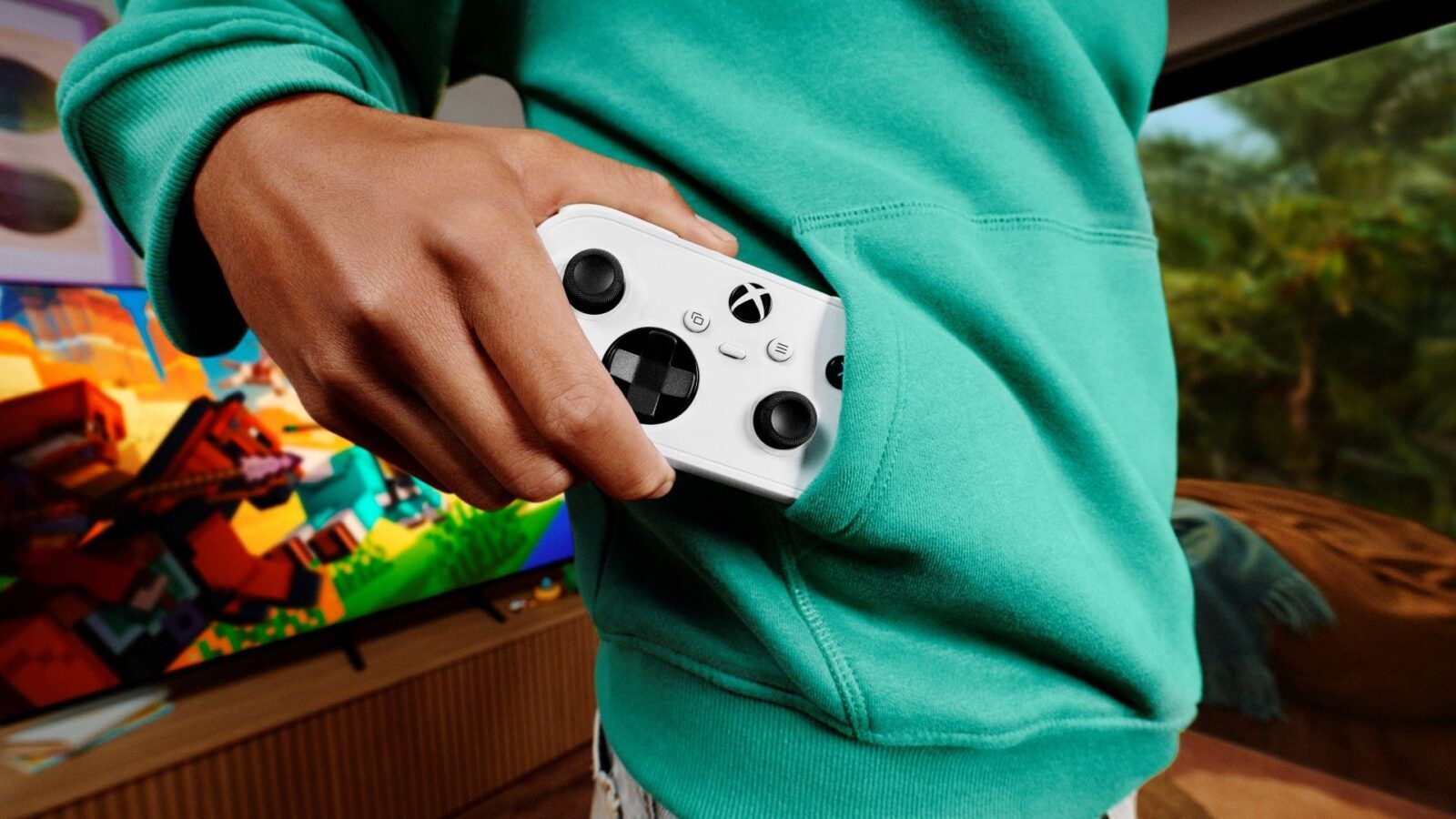
- Xbox Mode transforms Windows 11 into a console-like gaming environment, offering a streamlined interface and aggregated game library from various stores.
- It provides performance benefits by reducing background processes and improving frame pacing, making it ideal for gaming on a variety of hardware.
- Users can easily switch between desktop and Xbox Mode using shortcuts, while additional tweaks like Hardware-Accelerated GPU Scheduling enhance the gaming experience.
- Although Xbox Mode simplifies gaming on PC, some limitations exist, such as disabled desktop navigation shortcuts and potential issues with secondary windows applications.
Playing games on PC comes with unmatched graphics and freedom, but console gaming often brings a level of simplicity and comfort that desktop environments lack. To bridge the gap between these two worlds, Microsoft introduced Xbox Mode - a feature built into Windows 11 that effectively turns your PC into a dedicated home gaming console.
Beyond being a simple quality-of-life feature, Xbox Mode highlights where the Xbox brand is heading: toward a unified gaming ecosystem rather than a strict reliance on traditional console hardware.
So what exactly is Xbox Mode, and why should PC and Game Pass players care? Here is a full rundown.
What Is Xbox Mode?
Simply put, Xbox Mode replaces your standard desktop environment with a streamlined, full-screen gaming shell driven by the Xbox PC app. You can launch it anytime inside Windows 11 to instantly pull up a controller-friendly catalog of your games. For anyone familiar with the Xbox dashboard - or modern console interfaces in general - the layout will feel right at home, complete with your recently played titles organized neatly along the sidebar.
If you notice games in your library that weren't bought through the Microsoft Store, don't worry: you aren't hallucinating. Xbox Mode automatically detects and aggregates installed titles across Steam, GOG, Epic Games Store, and Battle.net, bringing your entire collection into one central dashboard.
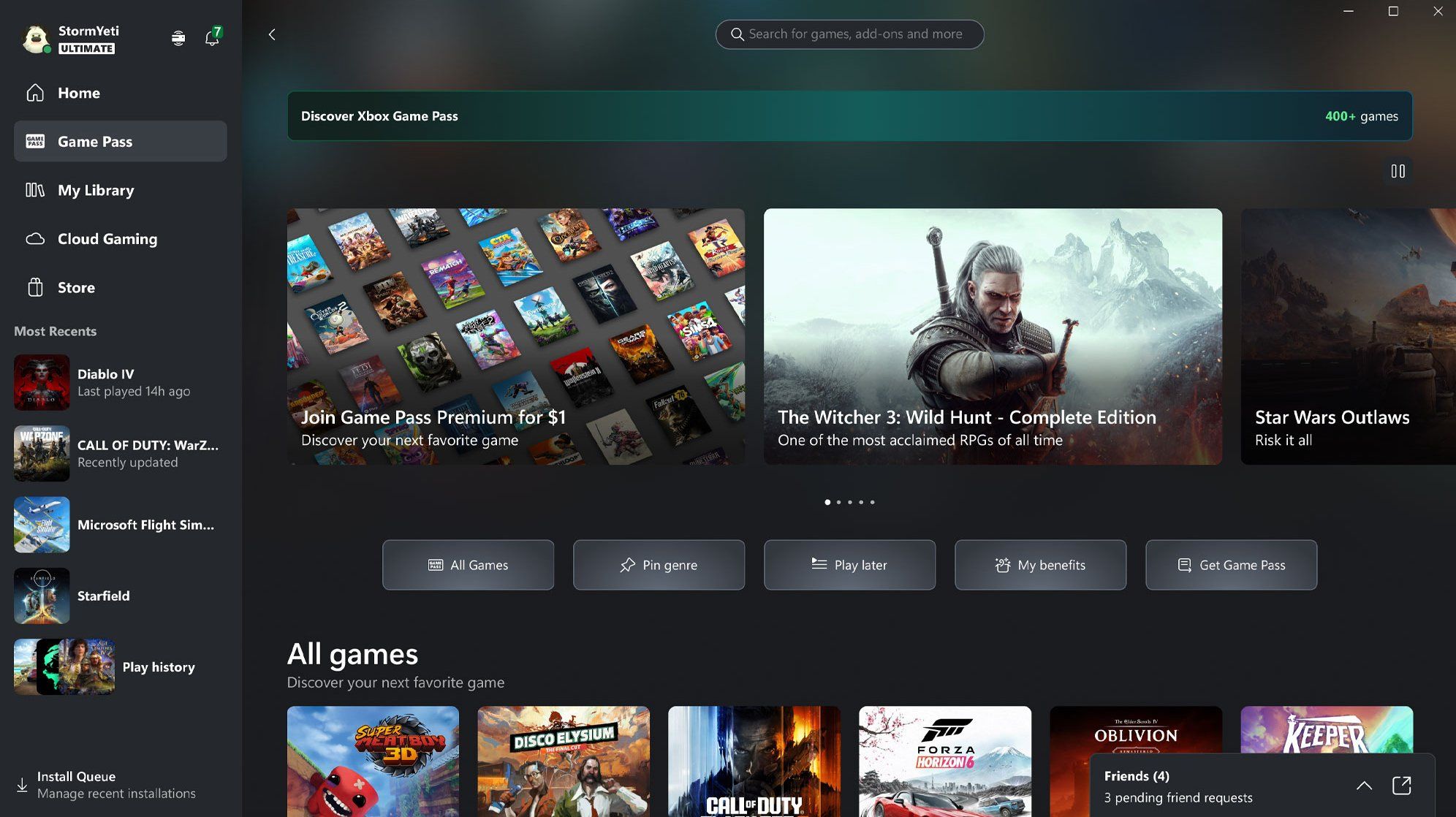
Xbox Mode for Windows 11 - Game Catalogue
The core goal of Xbox Mode is to deliver a seamless "boot-and-play" experience. You simply pick up a controller, select your game, and start playing without touching a mouse or keyboard. By stripping away desktop clutter and suppressing non-essential background Windows services, Xbox Mode offers a cleaner, console-like atmosphere. It is an ideal setup whether you are playing on a TV from the couch, working on a gaming laptop, or playing on a portable handheld.
What Are the System Requirements?
To make use of Xbox Mode, your setup will need the following:
- Operating System: Windows 11 Build 24H2 or newer.
- Supported Hardware: Standard Windows 11 gaming PCs, laptops, home theater setups (HTPCs), or PC handhelds (such as the ASUS ROG Ally, Lenovo Legion Go, or MSI Claw).
- Controllers: While optional (you can still navigate with standard inputs), an Xbox Wireless Controller or compatible XInput gamepad is highly recommended for the best couch-gaming experience.
How to Set It Up (Step-by-Step)
Setting up Xbox Mode takes just a few clicks inside Windows 11 settings.
For Standard PCs & Laptops
- Open Settings > Gaming > Xbox Mode.
- Toggle on Enable Xbox Mode.
- (Optional) Enable "Enter Xbox mode on startup" to launch directly into the full-screen console shell whenever you sign into Windows.
For Handheld Gaming PCs
- Navigate to Settings > Gaming > Xbox Mode.
- Under Choose home app, select your primary launcher (such as the Xbox App).
- Toggle on "Enter Xbox mode on startup" to transform your handheld into a dedicated gaming console upon boot.
Quick Entry & Exit Shortcuts
- Keyboard Shortcut: Press
Win + F11to instantly toggle back and forth between your standard desktop and Xbox Mode. - Game Bar / Task View: Open the Game Bar (
Win + Gor the Xbox Guide button) or Task View (Win + Tab) and click the Xbox Mode icon to switch views.
Why Would You Want To Use Xbox Mode?
The most immediate benefit of Xbox Mode is couch accessibility: it completely removes the friction of needing a keyboard and mouse to launch PC games.
Under the hood, Xbox Mode also delivers genuine performance benefits over a standard desktop shell. By suppressing unnecessary background processes and reducing overall RAM and CPU overhead, the mode provides cleaner frame pacing and smoother 1% low framerates - which is especially helpful in CPU-heavy titles. It also blocks distracting desktop pop-ups, Windows notifications, and accidental app switches while you are in the middle of a game.
Add in the fact that it automatically unifies your libraries from Steam, GOG, and Epic into a single interface, and Xbox Mode eliminates the hassle of juggling multiple desktop launchers.
Beyond managing your game library, Xbox Mode makes it effortless to stay connected with your gaming community across PC, console, and mobile. By pressing Win + G at any point during gameplay, you can bring up the Xbox Game Bar overlay to see what your friends are playing, start group voice or text chats, share screenshots and clips, and respond to party invites without ever leaving your game.
Power User Tips for Getting the Most Out of Xbox Mode
To maximize your performance, a few tweaks can elevate the experience even further. Inside Settings > Apps > Startup, consider configuring secondary background programs - such as Discord or third-party launchers - to "Start when exiting to desktop." This prevents unnecessary apps from booting into system memory while you are playing in Xbox Mode, reserving those resources exclusively for your game.
Pairing Xbox Mode with Hardware-Accelerated GPU Scheduling (HAGS) in your Windows Display Settings will also help lower input latency and improve frame delivery. Finally, if you have your PC connected to a living room TV, you can pair Xbox Mode with Windows display profiles to automatically engage HDR and set your TV's maximum refresh rate as soon as the gaming shell opens.
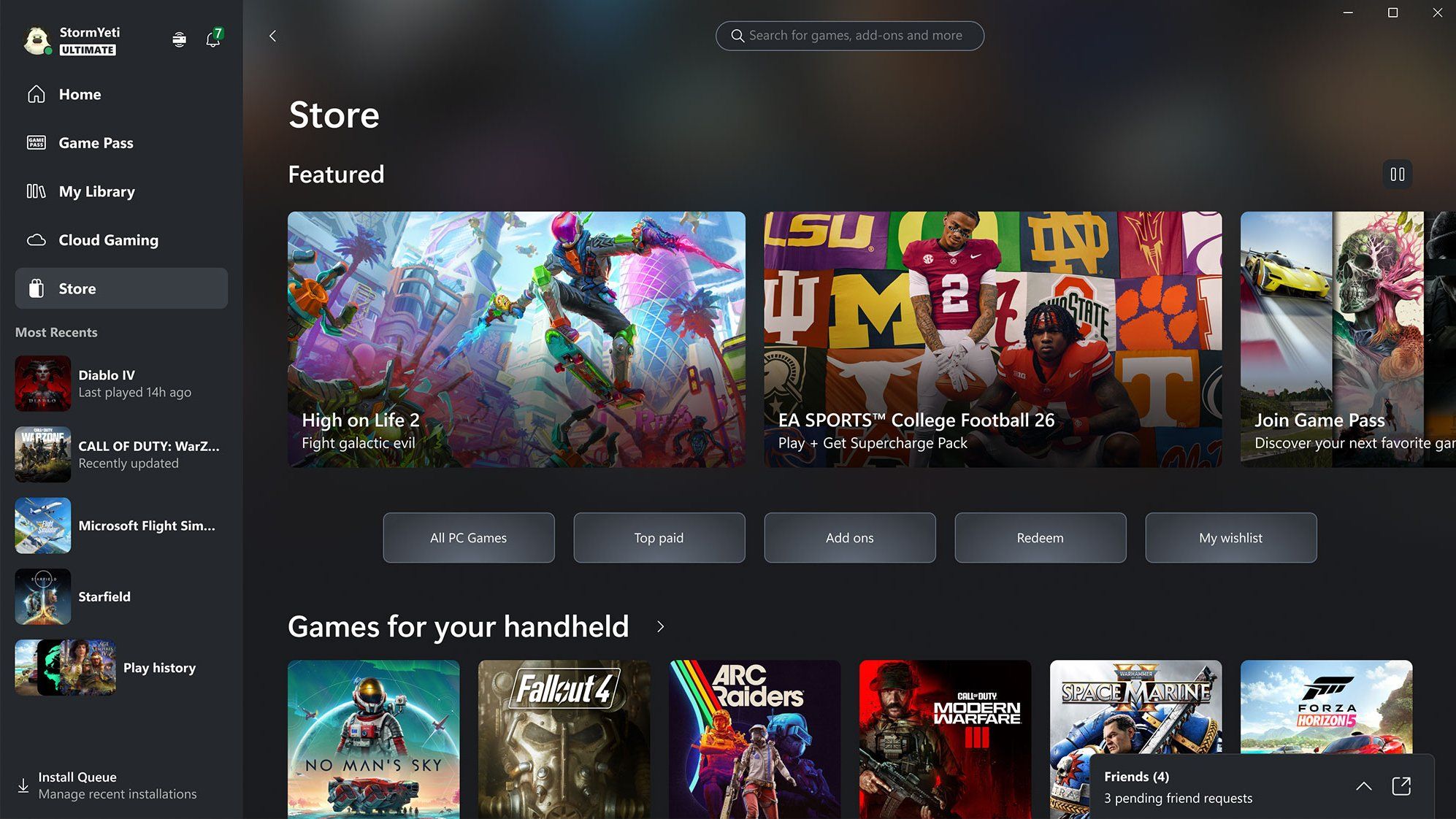
Xbox Mode for Windows 11 - Store
Important Things to Keep in Mind
While Xbox Mode creates a fantastic console-like environment, there are a few practical limitations worth keeping in mind. Because the shell strictly enforces a single-window focus, applications that rely on secondary pop-up windows or legacy third-party launchers may occasionally render on a black background or hide behind your primary game window.
Additionally, standard desktop navigation shortcuts - such as Alt + Tab or window snapping - are modified or disabled while Xbox Mode is active to prevent accidental desktop context switching.
Finally, it is important to remember that Xbox Mode is a reversible interface shell rather than a completely stripped-down operating system like SteamOS. Windows remains fully intact underneath, meaning you can instantly jump back to your standard desktop whenever you need full PC functionality.
This article was written by a human and fact-checked and edited by Gemini 3.6 Flash.
Editorial Standard: Drafted with AI assistance, thoroughly reviewed and published under GoodGamePass editorial supervision.