
Xbox Disc-to-Digital Feature: How Does It Work?
One of the most interesting features for Xbox owners this year is out Today.
The Xbox Disc-to-Digital feature is officially rolling out to Xbox users. Here is a step-by-step breakdown of requirements, entitlement setup, ecosystem benefits, and physical resale rules.
Microsoft's Disc-to-Digital feature allows Xbox players to convert physical disc ownership into digital entitlements. This bridges the gap between physical media collections and modern ecosystem features, granting physical disc owners access to digital conveniences - such as disc-free local play, cloud streaming, and PC cross-buy - without needing to repurchase their games digitally.
Automatic Single-Disc Method
- Power On & Sign In: Turn on your Xbox console and sign into the Microsoft account where you want to attach your digital license.
- Insert & Play: Place a supported Xbox One or Xbox Series X game disc into the optical drive and launch the title.
- Automatic Confirmation: A system notification will pop up confirming you’ve received your digital license. Once granted, the physical disc is no longer required to play.
- Locate in Library: Go to
My Games & Apps>Full Library>All Games. Your digitized titles will now feature a distinct Disc to Digital Licensing Badge.
Easy does it
Bulk Claiming (Large Collections)
If you have autoplay enabled, inserting multiple discs in sequence can trigger unwanted game installations that slow down the claiming process. Use this method to quickly digitize a large physical library:
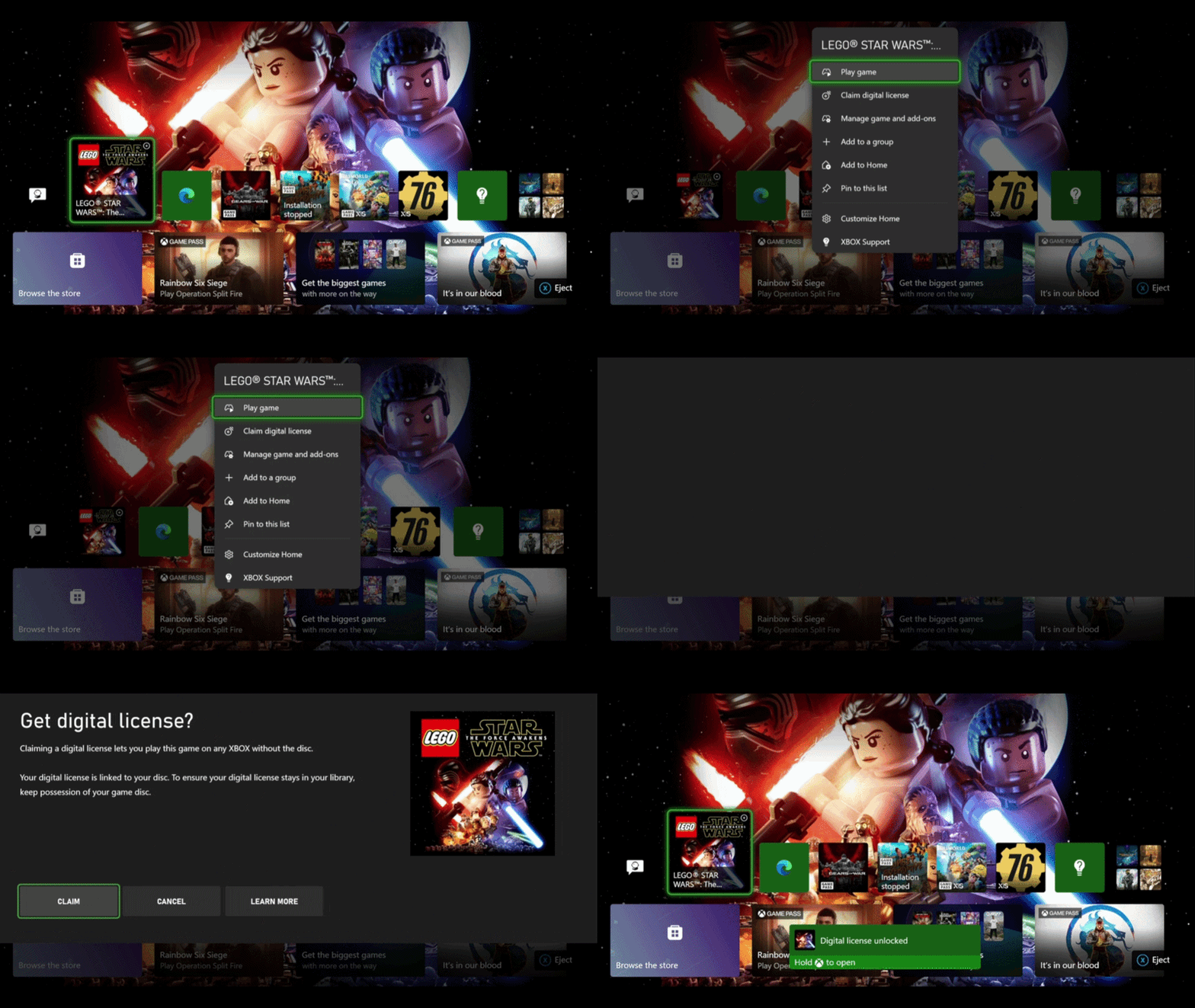
- Press the Xbox Button on your controller and navigate to Profile & System > Settings.
- Go to Devices & Connections > Disc and uncheck Play Disc Automatically.
- Return to the Home Screen and insert your first game disc.
- Highlight the game's box art, press the Menu Button (☰), and select Get Digital License.
- Select Claim and wait for the confirmation notification.
- Eject the disc, insert your next title, and repeat steps 4–5 until all discs are processed.
- (Optional) Re-enable Play Disc Automatically in Settings once finished.
How to Access Claimed Disc-to-Digital Games on PC
Your physical disc claims extend beyond your console for supported cross-platform titles:
- Open the Xbox App on PC and log into the same Microsoft account used on your console.
- Navigate to My Library.
- Any claimed disc-to-digital game that supports Xbox Play Anywhere will appear in your library marked with the Disc to Digital Licensing Badge.
- Click Install to download and play the PC version directly - no console or optical drive required.
This article was written by a human and fact-checked and edited by Gemini 3.6 Flash.
Editorial Standard: Drafted with AI assistance, thoroughly reviewed and published under GoodGamePass editorial supervision.
You might also like...

Aniimo Season 1 Part 2: Everything You Need To Know

Game & Hardware Sales Right Now
Subnautica 2 EA 2.0 Update: Frog Chassis, Dark New Biomes, and Movement Upgrades

Quarantine Zone: Miami Zero DLC Breakdown
ROG Xbox Ally X20 Anniversary Edition: Everything You Need to Know