- Xbox Cloud Gaming allows players to access hundreds of titles on almost any modern device, such as mobile phones, tablets, and PCs, without the need for high-end hardware.
- Access to the cloud streaming library is bundled into Game Pass subscription tiers (Ultimate, Premium, or Essential), with some titles like Fortnite available for free.
- Stream quality depends on both bandwidth for resolution and low jitter for responsiveness, making 5GHz/6GHz Wi-Fi or 5G mobile networks the preferred connections.
- To optimize the experience, users should play via a web browser, connect a physical controller, and minimize background applications to ensure smooth video decoding.
Cloud gaming has grown rapidly in popularity, offering a flexible solution for gaming on the go or skipping high hardware costs. For Xbox gamers, Xbox Cloud Gaming (formerly xCloud) unlocks access to hundreds of titles on devices you already own.
Here is how Xbox Cloud Gaming works, what hardware you need, and the key network factors that dictate your stream quality.
What Do You Need to Play on Cloud Gaming?
Xbox Game Pass Subscription: Microsoft does not offer a standalone "Xbox Cloud Gaming-only" subscription; cloud streaming is bundled as a core benefit across Xbox Game Pass tiers.
- Game Pass: The Console Subscriptions of Game Pass offer Xbox Cloud Gaming. Depending on the tier, you will get access to a selection of games. Game Pass Ultimate has 500+ titles, Premium 400+, and Essential 90+. Some titles, like Fortnite, are free-to-play on Xbox Cloud Gaming.
- Pro Tip (Save on Your Sub): Never pay full price month-to-month. We have two articles that explain how to save money by buying from trusted third-party resellers and using the ultimate conversion trick.
- Free Test Loophole: Before spending any money, you can test your performance playing Fortnite on xbox.com/play with just a free Microsoft account.
Recommended Hardware: Almost any device with a modern web browser works, including Android tablets, iPhones, iPads, PCs, a ROG Xbox Ally, and old laptops.
While some titles support touch controls, connecting a physical Bluetooth or USB controller drastically improves the experience. An official Xbox controller is ideal due to its native button mapping, but most third-party Bluetooth controllers work seamlessly.
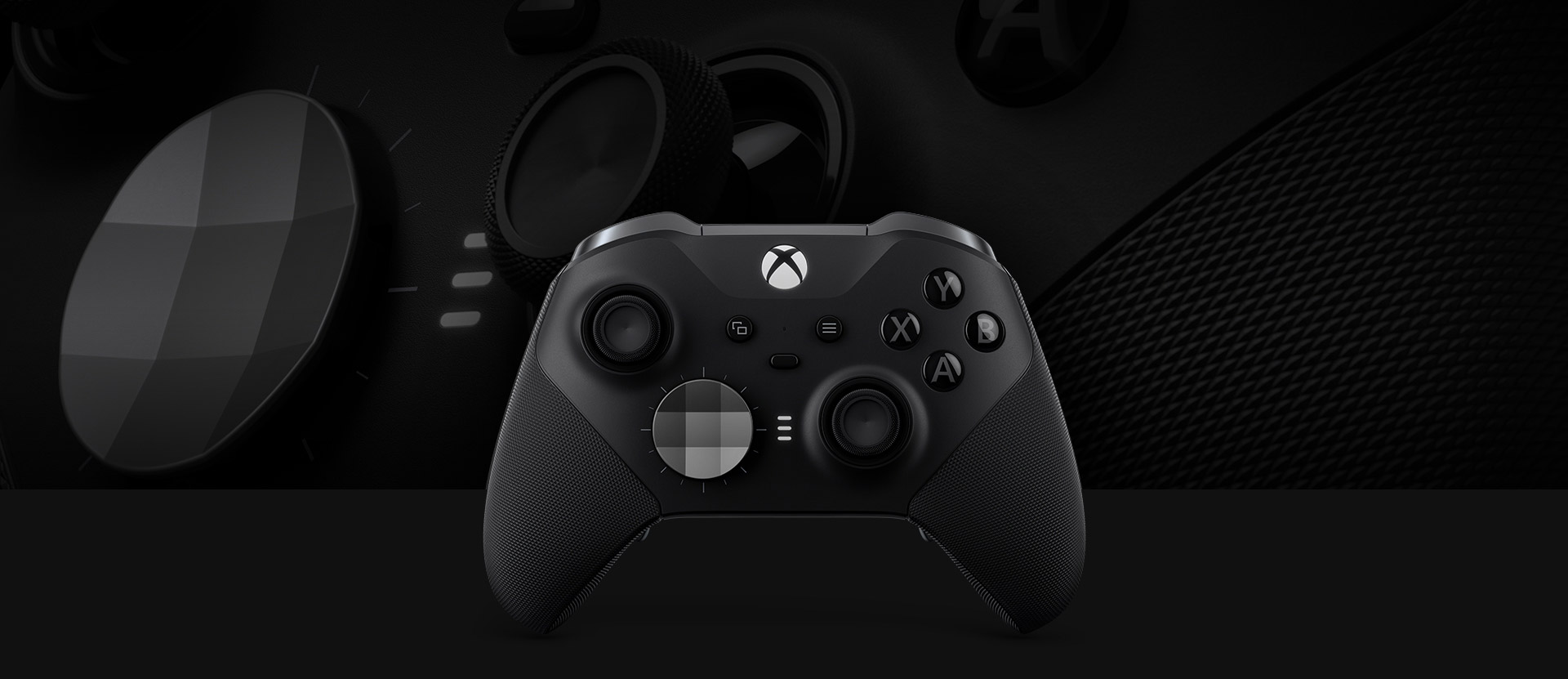
XBOX Elite Wireless Controller Series 2
Hardware Note: While your device doesn't render game graphics locally, it still has to decode a high-bitrate 1080p video stream in real time. Ultra-budget devices with very low System RAM or weak graphics processing (VRAM) can struggle to decode the video feed smoothly, resulting in dropped frames or visual stuttering regardless of your internet speed.
How to Access Xbox Cloud Gaming
- Ensure you have an active Game Pass subscription (Ultimate, Premium, or Essential).
- Open a web browser (such as Chrome, Safari, or Edge) and head to xbox.com/play.
- Log in with your Microsoft account.
- Select any game from the catalog. Titles you've played recently will appear under Jump back in.
- Tap Play to launch the cloud stream.
Note: Your save data syncs automatically to the cloud, allowing you to resume your progress seamlessly on an Xbox console, PC, or mobile device.
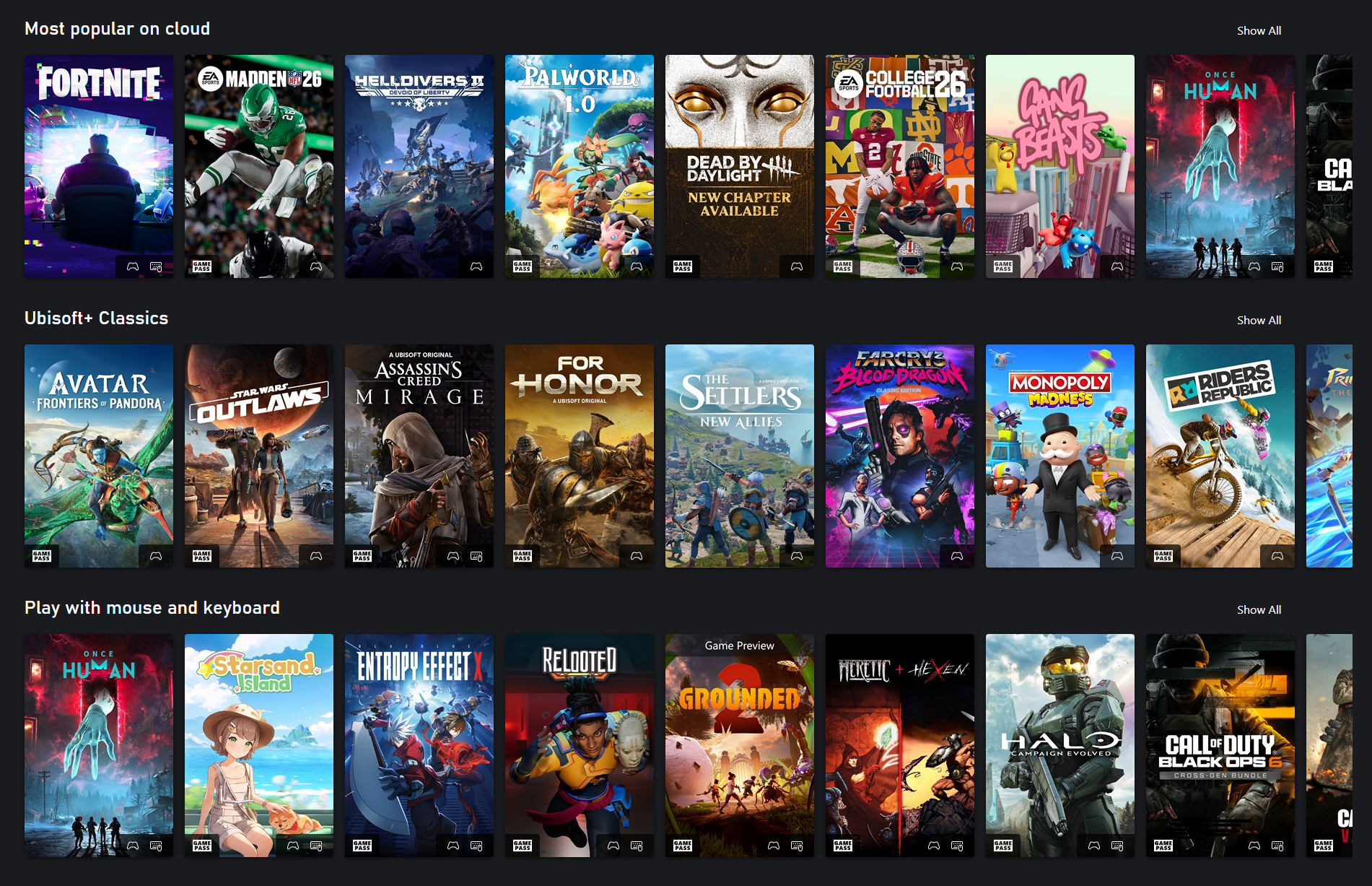
Xbox Cloud Gaming - Game Pass Ultimate Catalogue
How Cloud Gaming Actually Works
Game graphics are rendered on custom Xbox hardware in Microsoft data centers. Your device simply acts as a video player and sends your controller inputs back to the server. Because cloud gaming is an interactive real-time stream, it operates with zero buffering safety net.
Many gamers assume raw download speed (Mbps) is all that matters, but that only tells half the story:
- Bandwidth (Mbps): Determines visual sharpness and video resolution.
- Jitter (Latency Variation): Determines smoothness and input responsiveness.
A connection with zero packet loss and low jitter delivers a crisp, responsive stream even at 30 Mbps. Conversely, a 500 Mbps connection with high network congestion will suffer from frequent frame skips and lag spikes.
Wi-Fi vs. Cellular Data: Older 2.4GHz Wi-Fi networks suffer heavily from household signal interference and high jitter. Upgrading to Wi-Fi 6, 6E, or Wi-Fi 7 routers - which utilize dedicated 5GHz and 6GHz bands - drastically reduces network congestion and ping spikes.
Alternatively, playing over 4G LTE or 5G mobile networks often provides a surprisingly low-jitter connection when away from home. Just keep an eye on your data caps, as cloud gaming consumes roughly 2GB to 3GB of data per hour.
Quick Optimization Checklist
- Use a Web Browser: Microsoft no longer supports game streaming inside the standard mobile Xbox App. Always play via xbox.com/play in Chrome, Edge, or Safari (or save it as a Web App on your home screen).
- Turn Off Android Location Services: Disable Location in quick settings to stop background Wi-Fi scanning spikes while streaming.
- Plug in via USB-C: If Bluetooth input lag feels sluggish on mobile devices, connect your controller directly with a short USB cable.
- Prioritize 5GHz/6GHz Wi-Fi: Ensure your device isn't automatically switching to slow 2.4GHz Wi-Fi bands.
- Close Background Apps: Free up RAM and CPU overhead on older devices so the hardware decoder can process incoming video frames without delay.
- Enable Clarity Boost (PC/Laptop): If streaming on a PC or Mac via Microsoft Edge, enable Clarity Boost in the stream settings menu to sharpen the video feed.
This article was written by a human and fact-checked and edited by Gemini 1.5 Flash.
Editorial Standard: Drafted with AI assistance, thoroughly reviewed and published under GoodGamePass editorial supervision.