
It is arguably the most frustrating modern gaming hurdle: you sit down to play a brand-new release, only to discover a 100GB+ download file that is crawling at a snail's pace. Before you throw your router out the window or subscribe to Starlink, there are a few built-in dashboard tricks you can use to unthrottle your console and maximize your bandwidth.
Here is exactly how the Xbox OS handles network traffic behind your back - and the hidden life hacks to fix it.
Clearing the "Quick Resume" Memory Trap
You might think that Quick Resume couldn't possibly affect your internet speeds, but it plays a massive, hidden role. To keep your games frozen in a state where you can snap back into them instantly, Microsoft built a persistent system architecture. For live-service games like Fallout 76, Call of Duty, or Diablo IV, this means the console maintains a silent network "heartbeat" to keep you connected to their servers.
Because the Xbox OS automatically reserves huge network bandwidth chunks to prevent multiplayer lag or background crashes, your active download queues get throttled to a fraction of their potential speed.
The Fix
First, ensure your current game is completely closed. Press the Xbox Button on your controller to open the Guide menu. Under the "Home" tab, look at your most recent games. Highlight your active game, press the Menu Button (three horizontal lines), and select Quit. If you don’t see the "Quit" option, the game is already closed.
Next, we need to purge the hidden memory.
- Navigate to My games & apps.
- Scroll down to Groups and select the system-generated Quick Resume folder.
- Here, you will see every game currently hogging your system's memory. Highlight the titles (especially live-service ones), press the Menu Button, and select Remove from Quick Resume.
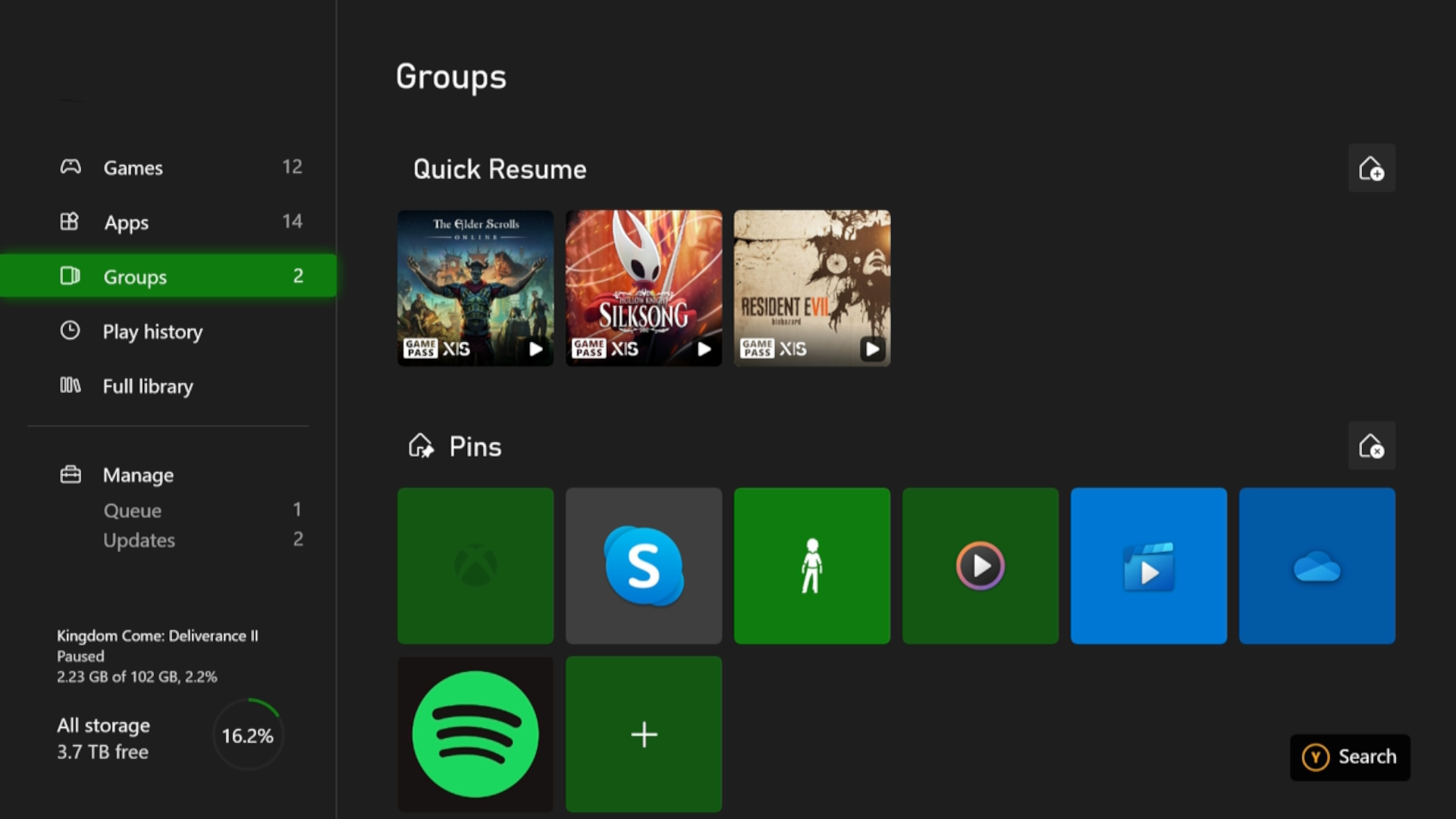
Xbox Quick Resume - Download Optimisation
Insider Hack: If you are tired of live-service titles like Fallout 76 constantly sneaking back into this list and stealing your bandwidth, you can now kill the feature entirely per game. Highlight the game inside your Quick Resume group, press the Menu Button, and select Manage Quick Resume. Here, you will find a hidden checkmark option to Disable Quick Resume. Check that box, and the game will never silently hijack your download speeds again!
Energy Saver vs. Sleep Mode: The Cache Myth
There is a major misconception that you must leave your console in "Sleep" (Instant-On) mode to download games while you're away. In reality, keeping your Xbox in Sleep mode for weeks at a time causes the system network cache to fragment, resulting in choked download speeds.
The hack? Switch to Shutdown (Energy Saving) mode. It allows your console to completely clear its system cache when turned off, resulting in highly stable, peak download speeds. It's much better than an Xbox that has been sleeping for a month but keeping "one eye open" the entire time.
Don't worry - your downloads will still progress while the console is powered down. You just need to verify two quick checkmarks:
- Press the Xbox Button and go to Profile & System > Settings.
- Go to General > Power Options and ensure your console is set to Shutdown (Energy Saving).
- Next, navigate to System > Updates.
- Verified 2026 Dashboard Path Check: Ensure both "Keep my console up to date" and "Keep my games & apps up to date" are explicitly checked. As long as these are on, your Xbox will silently pull down your queue at maximum speed while completely powered off.
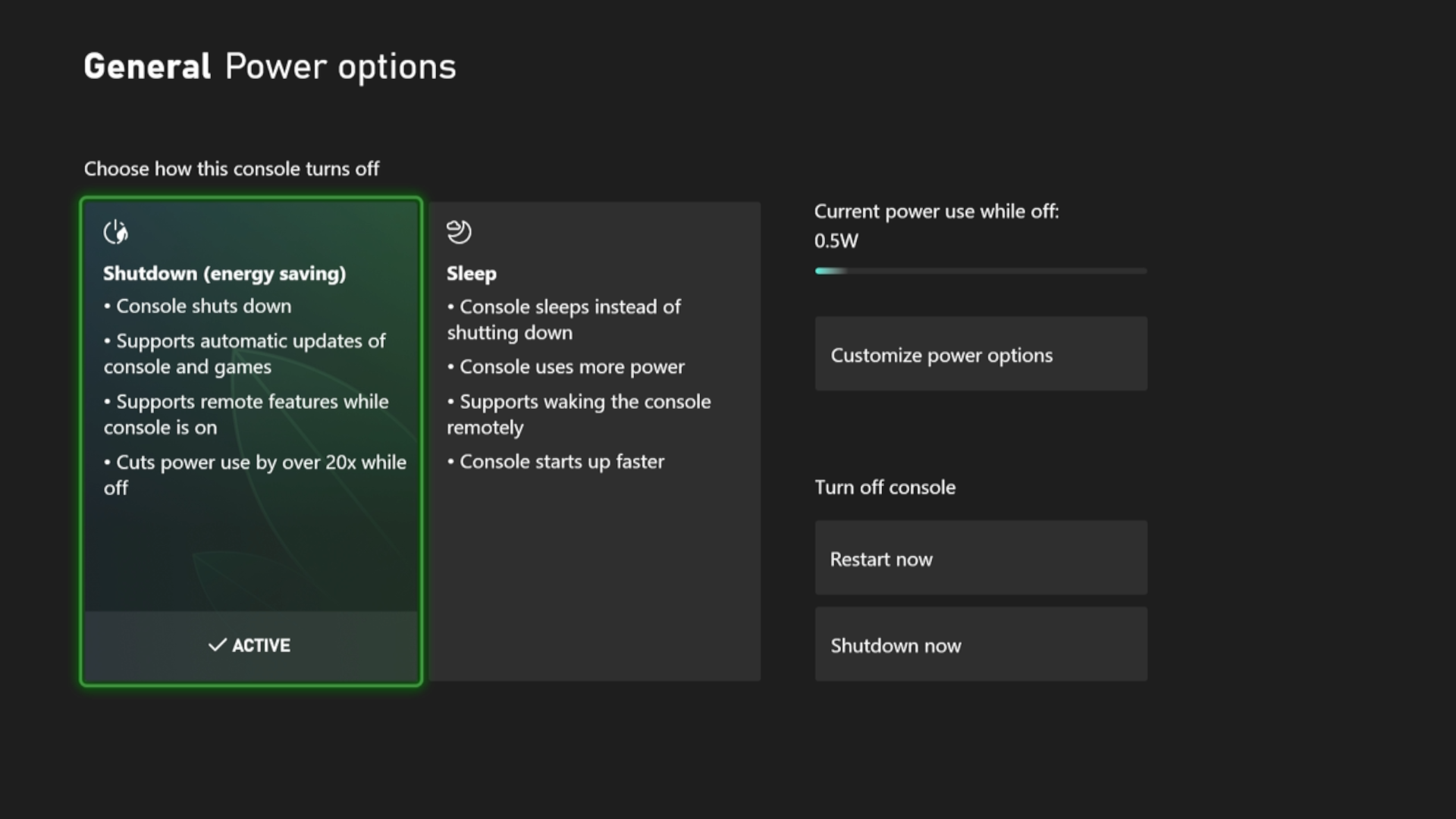
Energy Saving - Download Optimisation
Bonus Inactivity Tip
If you frequently walk away from your console and forget to turn it off, don't let it sit there idling and throttling your background downloads. Go to Settings > General > Power Options > Turn off after. Reduce this limit to 1 hour (or even 20 minutes) to protect your bandwidth and your energy bill from human flaws.
Changing Your DNS
Why does this help?
Think of your Domain Name System (DNS) as the phonebook of the internet. By default, your Xbox uses your internet service provider's (ISP) automatic DNS. If your ISP’s local servers are congested or poorly routed, your Xbox takes longer to "find" the Microsoft download servers, causing erratic, stuttering download drops.
By manually switching to a high-speed, independent public DNS pool, you route your console through optimized data highway lanes, forcing a cleaner, faster connection handshake.
How to set it up:
- Go to Settings > General > Network settings > Advanced settings.
- Select DNS settings and switch it from Automatic to Manual.
- Enter one of the primary high-speed public pools:
- Cloudflare: Primary: 1.1.1.1 | Secondary: 1.0.0.1
- Google: Primary: 8.8.8.8 | Secondary: 8.8.4.4
Note: This is a routing optimization trick, not a magic wand. Check your network statistics afterward. If you don't notice a speed bump, you can safely revert it back to Automatic.
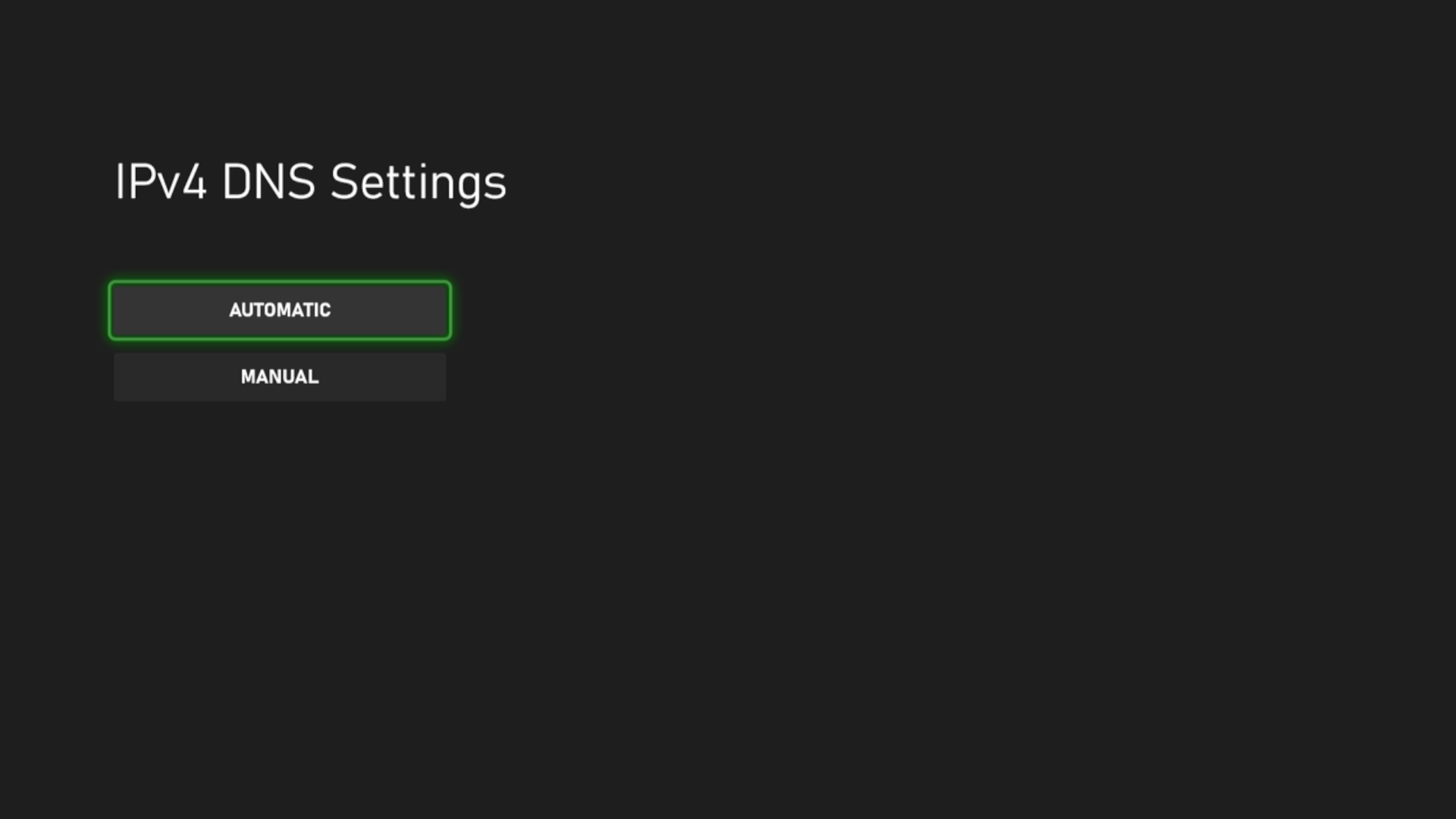
DNS Settings - Download Optimisation
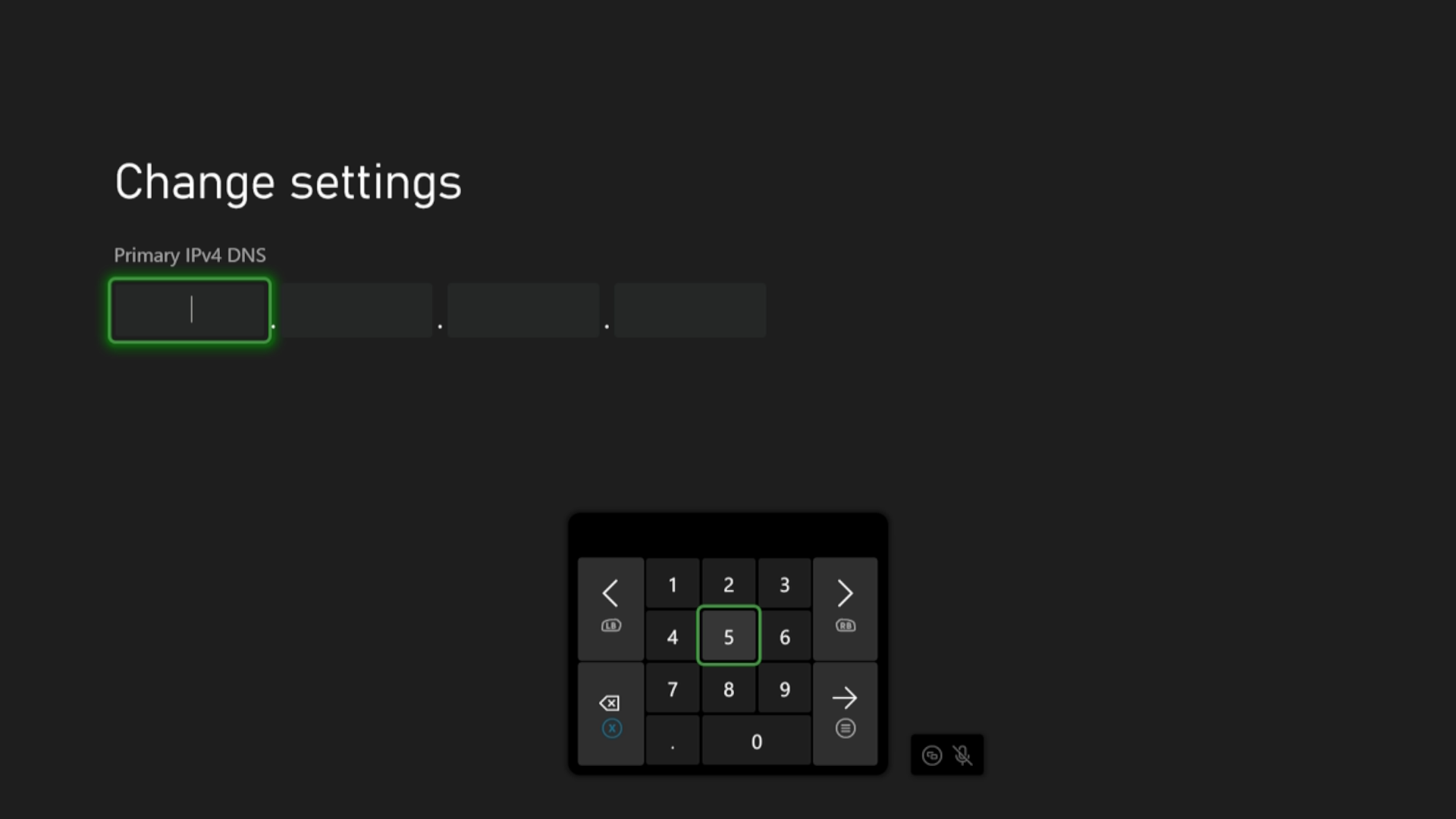
Manual DNS - Download Optimisation
Debunking The Pre-Download Myth
To wrap up this life hack manual, let’s bust a popular internet myth regarding "pre-saving" upcoming games.
Many gamers utilize the official Xbox Mobile App on their phones to search for unreleased or upcoming Game Pass games and hit "Download to Console." A lot of players get excited thinking they are downloading the full 80GB game weeks in advance.
The Reality: You are actually just downloading a tiny, 200MB "placeholder file." This placeholder effectively reserves your digital ticket and pre-orders the space on your hard drive.
The Real Hack: Keep that placeholder file on your Xbox. Roughly 48 to 72 hours before the actual game launches, Microsoft will push the real game files out as an automatic update. Because you followed our steps above and enabled automatic updates in Energy Saving mode, your Xbox will silently pull down the massive, actual game file in the middle of the night before launch day. When the clock strikes midnight, you get to skip the queue entirely.
This article was written by a human and fact-checked and edited by Gemini 1.5 Flash.
Editorial Standard: Drafted with AI assistance, thoroughly reviewed and published under GoodGamePass editorial supervision.